Display settings
The Display tab controls how the map looks. These settings are presentation only — they never affect routing.
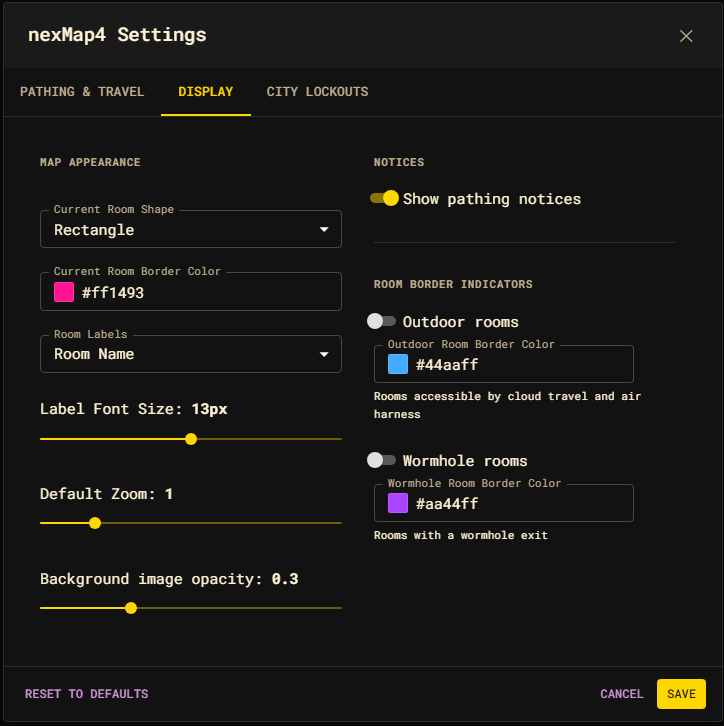
Map Appearance
| Setting | Default | Effect |
|---|---|---|
| Current Room Shape | Rectangle | Shape drawn around your current room. Rectangle or Ellipse. |
| Current Room Border Color | #ff1493 | Color of the current-room outline. Includes a color picker. |
| Room Labels | Room Name | What each room shows: Room Name, Room ID, or Hidden. |
| Label Font Size | 13px | Room-label text size (6–20px). |
| Default Zoom | 1 | Zoom level applied to the map (0.1–5). Previews live as you drag. |
Background
| Setting | Default | Effect |
|---|---|---|
| Background Image URL | (bundled wallpaper) | Optional image drawn behind the map. Clear it to remove. |
| Background Opacity | 0.3 | Opacity of the background image (0–1). |
You can also set the background from the command line:
nm background https://example.com/image.jpg
nm background off
Notices
| Setting | Default | Effect |
|---|---|---|
| Show pathing notices | On | Show the snackbar toasts ("Pathing to …", "Arrived", "Path blocked") while a route runs. |
Room Border Indicators
These draw a colored border around rooms that offer a fast-travel method, so you can spot travel hubs at a glance. Both are off by default and each has its own color picker.
| Indicator | Default color | Highlights |
|---|---|---|
| Outdoor rooms | #44aaff | Rooms accessible by cloud travel and air harness. |
| Wormhole rooms | #aa44ff | Rooms with a wormhole exit. |